
See your trips
Check the date, route, distance and time before using your mileage totals.
A workday might mean a customer visit, a parts pickup, another job and a personal stop on the way home. MileFree keeps those drives together so you can check the distance, mark each trip Business or Personal and prepare a report. The public iPhone beta is available through TestFlight.
Check the date, route, distance and time before using your mileage totals.
Change a trip's Business or Personal category after the drive. Both remain in one history.
Adjust the first trip, last trip, both or fixed daily miles without changing the recorded distance.
Choose the dates, review the totals and download PDF, CSV or XLSX.
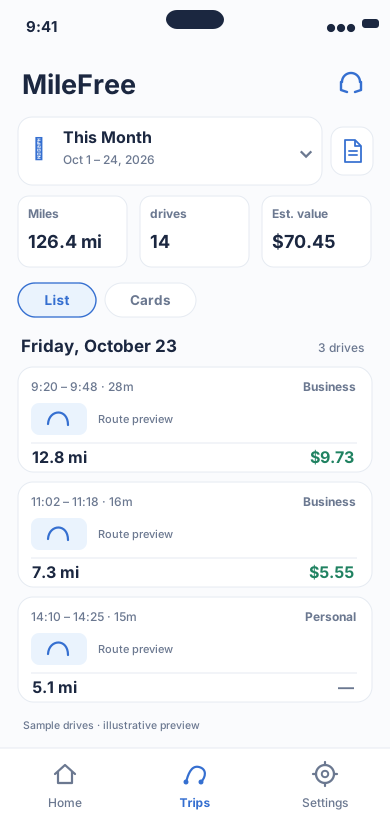
Date range, miles, drives and reviewable trip history.
Flutter UI: HistoryScreenOpen larger preview ↗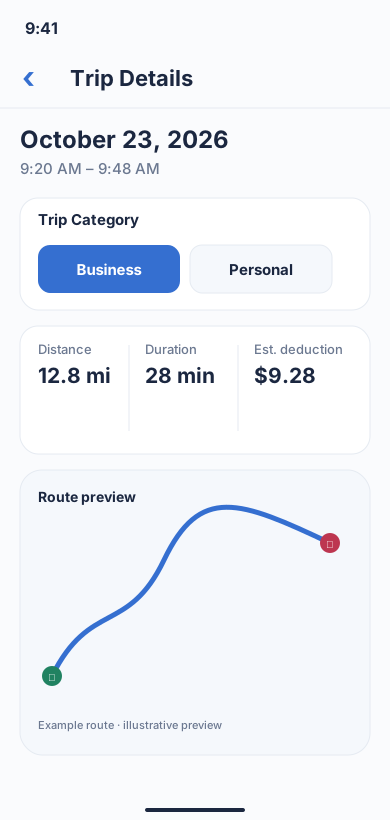
A real MileFree workflow: classify one recorded trip as Business or Personal and review distance, duration and estimated value.
Flutter UI: TripScreenOpen larger preview ↗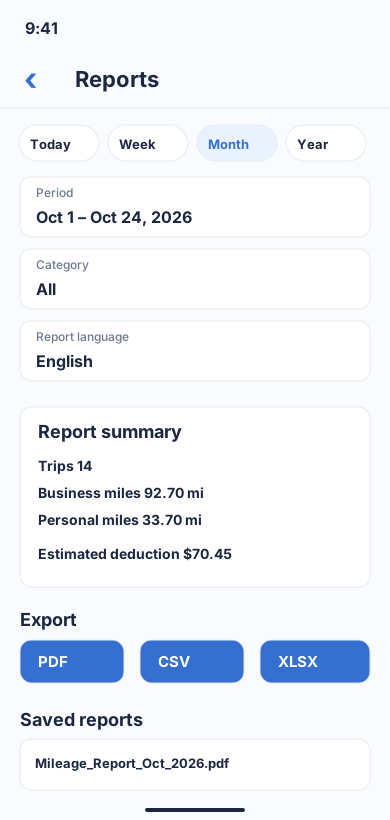
Choose a period and category, review business/personal totals, then download a report in PDF, CSV or XLSX format.
Flutter UI: ReportBuilderScreenOpen larger preview ↗Illustrative previews based on the app interface, with example data. These are not actual iPhone screenshots; the design may change. Preview text is in English.
Let MileFree record the trip, or use manual Start / Finish.
Check the route and miles; look for missing or duplicate drives.
Mark each trip Business or Personal; check commuting separately.
Choose a date range, review Business and Personal totals, then download reports in PDF, CSV or XLSX formats.
| Route | Distance | Category | Purpose |
|---|---|---|---|
| Customer A → parts supplier | 5.2 mi | Business | Parts for customer job |
| Parts supplier → Customer B | 7.4 mi | Business | Second service visit |
| Customer B → grocery store | 3.1 mi | Personal | Personal shopping |
Sample distances only — not real MileFree GPS measurements or proof of a tax deduction.
When the entries are correct, choose PDF, CSV or XLSX; save supporting receipts or work orders separately.
Try this workflow with the public iPhone beta or read the installation guide. Install free iPhone beta · How to install
Automatic tracking depends on permissions, GPS and iOS background behavior. Check the saved history and use manual Start / Finish when needed.
Yes. Check the recorded trip and update Business or Personal if the first choice was wrong.
No. Ordinary commuting generally follows different rules, with exceptions depending on the circumstances. Check IRS Publication 463.
Not necessarily. You may need dates, destinations, business purposes and supporting records. MileFree organizes trips but does not determine tax eligibility.
With the required iPhone permissions, MileFree can record drives in the background. Manual Start and Finish controls are available too. GPS reception and iOS background restrictions can affect tracking, so review your trip history.
Set your working days and hours, then check individual trips. A parts run might be work; groceries after a job are personal. You choose the category.
Commute settings change summary calculations, not the original recorded distance. Core mileage records are stored locally on your iPhone in the current beta, with no required MileFree account.
For US business records, the date, destination and reason for each drive can matter as much as the miles. Keep job notes, appointments or receipts where appropriate. Marking a trip Business doesn't automatically qualify it for a tax deduction; see IRS Publication 463.
Check for missing drives, incorrect categories and personal stops. An exported file helps organize your records, but it cannot decide whether commuting or a particular job visit qualifies for a tax deduction.
Core mileage features are intended to stay free, without a Premium tier. The public iPhone beta is available on TestFlight; the App Store release is still in preparation.